
Start with the page and the file. Is the image in a real <img src>? Can a crawler fetch it? Does the surrounding copy explain why it belongs there? A clever filename or WebP conversion won’t help much if the image is absent from crawlable markup.
The worked example is GIndexa’s Search Console opportunity article, inspected October 1, 2026. We can show its markup and file response. We cannot infer Image Search rankings from them.
What Google Needs to Find an Image
Check initial and rendered HTML for a working <img src>. Google can find it, including a fallback inside <picture>, but not a CSS background as a page image. Use semantic HTML when the visual itself should be searchable.
Check status, content type, robots rules, and X-Robots-Tag on the image response. If JavaScript inserts it, use URL Inspection to see whether the rendered src appears without a click. Google’s lazy-loading guidance says Search does not interact to reveal content.
| Discovery check | What to capture | Why it matters |
|---|---|---|
| Landing page | Indexability and selected canonical | Search needs a page to associate with the image. |
| HTML image source | <img src> and rendered DOM |
CSS-only or click-gated sources may be missed. |
| File response | Status, type, and crawl access | A broken or blocked image cannot be fetched. |
| Context | Heading, caption, and nearby text | The image’s subject needs a page-level explanation. |
If those four checks pass, you have removed common discovery obstacles. Whether the image appears for a query is a separate observation.
Write Alt Text and Surrounding Copy That Describe the Image
Alt text should describe what the image contributes here. A chart might use “Query impressions for three variants on one landing page.” A decorative mark can use alt="". Google’s image guidance warns against repeated keywords and says it also uses page context and computer vision.
For a data-heavy chart, put exact values in a nearby HTML table and the decision in the next paragraph. That gives readers a usable fallback when the image fails, at small screen sizes, or with a screen reader. Keep the alt short enough to identify the comparison. The table carries dates, units, and qualifications that pixels or one alt string cannot explain well.
A descriptive filename offers a small clue. Choose it before publication, when there’s no existing page, feed, or embed URL to break.
Caption a chart with its date, source, and the status of any proposed action. GIndexa’s query-to-page figure does this, while nearby HTML carries the actual figures if the image fails.
Serve the Right File Without Hiding the Source
Responsive images send a smaller version to narrow screens and a larger one to wide screens. Inspect srcset and sizes, then confirm a valid fallback src remains. Google supports srcset and <picture>, but its image documentation still recommends a fallback <img src> because not every browser or crawler understands every responsive feature. A data-src field alone is not the same source.
Keep enough resolution to read the subject. A 50 KB screenshot with illegible table labels is a poor trade. View it at mobile and desktop widths, then compress until a smaller file would damage the useful detail. WebP and AVIF are supported, but the extension must match the actual format. The WebP conversion guide covers format choice, and the image compressor handles size.
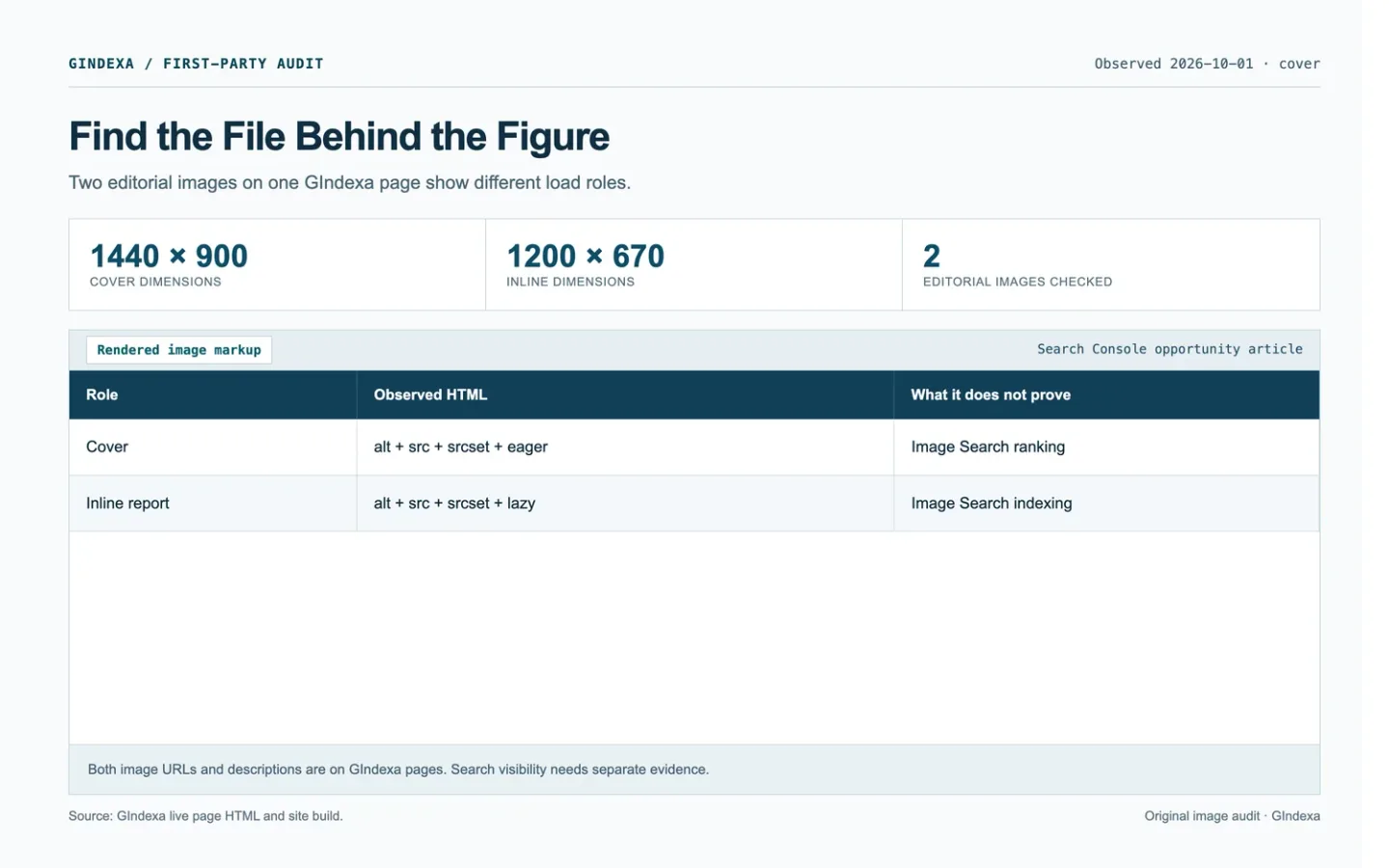
Reserve space with width and height or an equivalent aspect ratio so the page does not jump while images load. Defer images below the first screen, but do not automatically lazy-load a cover that is likely to be the largest visible element. In GIndexa’s generated article HTML, the cover is 1440 by 900 pixels with loading="eager". The inline figure is 1200 by 670 with loading="lazy". Both have a src and responsive srcset. Those attributes are observable implementation choices, not a Core Web Vitals score.
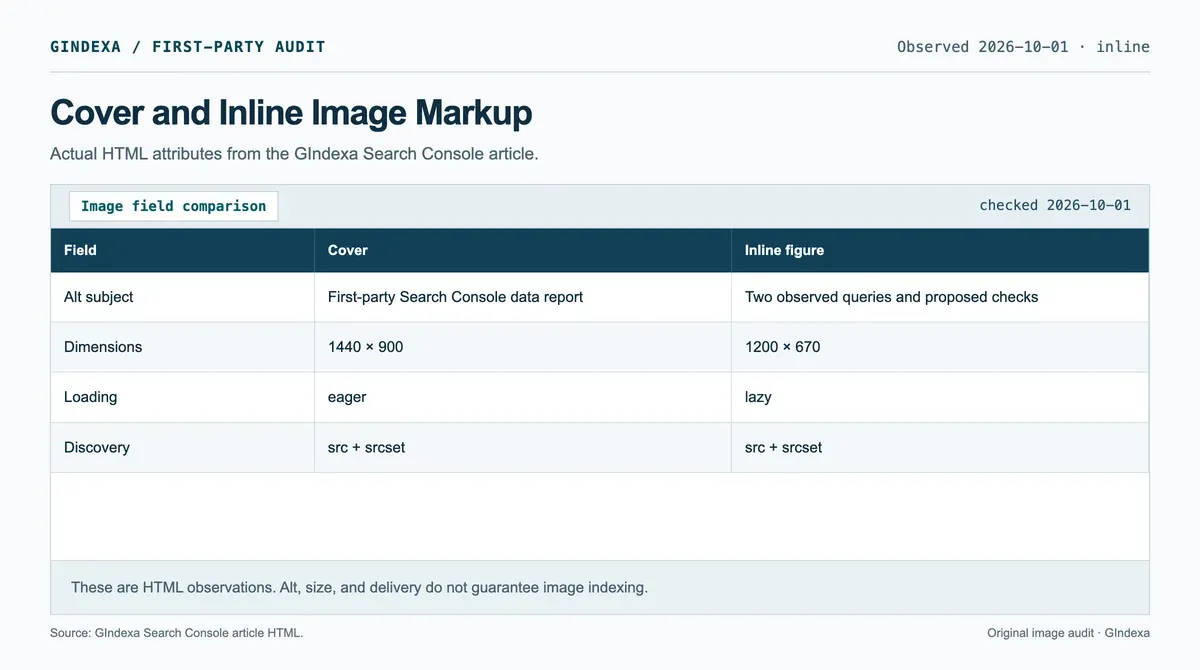
Source: GIndexa’s built Search Console article HTML, inspected October 1, 2026. The record does not claim Google indexed either image.
Choose the Cover, Preview, and Structured Data Deliberately
The page cover, social sharing image, and Google preview may differ. Google’s image guide says og:image and primaryImageOfPage structured data can indicate a preferred preview. Neither forces a thumbnail or replaces an image Google can find in the page. Pick a visual that represents the article and stays legible at preview size. A logo or crowded text card rarely helps the reader decide whether to open it.
For a product or recipe eligible for an image-rich result, add only the structured data type the page genuinely supports and test it with the appropriate tool. A generic article does not need an ImageObject block on every decorative icon. If licensing matters, Google’s image license metadata guidance explains the supported metadata and structured data paths. Do not invent a license value or a creator credit for stock or third-party art.
Record who created an image and what third-party marks or text it contains. The audit records in this article use GIndexa’s own markup and data. Their captions identify source and limits.
In this audit, the cover is useful because its report fields match the article’s Search Console task. Its appearance alone says nothing about search performance.
Decide Whether an Image Sitemap Adds Discovery
An image sitemap helps expose files that are hard to find in ordinary page markup, especially when scripts load the images. If discoverable pages already include them in crawlable <img src> elements, the sitemap may add little. Google’s documentation requires <image:image> and <image:loc> per entry and allows files on another host when the required domains are verified. Submission helps discovery, but says nothing by itself about indexing.
If the CDN is on another host, inspect that host’s robots rules and ownership in Search Console. A sitemap that names a blocked file does not make it fetchable. Test several representative image URLs from the sitemap, not merely the XML syntax. When the same asset appears on multiple pages, keep a stable image URL where practical. Google’s image guidance notes that reusing the URL helps its systems cache and reuse the file.
Do not revive old optional sitemap tags from outdated examples. Google’s current image sitemap page no longer treats image:caption, image:title, image:geo_location, or image:license as supported image-sitemap fields. Put meaningful captions in HTML and licensing metadata in the supported places. Keep the page’s sitemap entry and its image discovery plan distinct: one lists the landing page, the other may list image URLs.
Audit a Real GIndexa Cover and Inline Figure
The Search Console article uses a first-party report image for its cover and a query-to-page review as its inline figure. The cover’s alt text says it shows a GIndexa Search Console data report with page totals and observed query impressions. The inline alt names the two observed queries and their proposed editorial checks. Both images appear in HTML with explicit dimensions and a fallback src. The cover loads eagerly and the inline image lazily.
Copy the image audit record CSV into Sheets or Notion, or download it as a working file. Its sample row records the observed GIndexa cover and marks unverified checks as pending. The 19 fields include landing page, image URL, role, exact alt, filename, HTML and rendered dimensions, loading, src or srcset, HTTP status, content type, crawl controls, canonical, Image Search observation, decision, owner, and evidence. The hashed image URL is a dated capture and may change after a site rebuild.
The markup shows what this page served on the inspection date. To evaluate a gallery, separate its main images from thumbnails, swatches, and badges. One verdict for every file would hide which images matter to search and which serve the interface.
The on-page SEO checklist includes a short image pass beside title and page-task checks. Use this image-specific process when the visual itself is valuable to searchers or absent from expected image results.
Measure Image Search Without Guessing
In Search Console Performance, set search type to Image and inspect pages and queries over a settled period. Compare the relevant page and topic before and after a change. Those reports show search activity, but cannot attribute a click to one alt phrase. If a different page receives the impressions, check its image and canonical relationship before deciding the intended page failed.
For a missing image, use URL Inspection on the landing page and examine rendered HTML, then request the image URL itself. Check robots rules on both hosts, image response headers, and whether the file is referenced in src. If a site recently changed image CDN URLs, check redirects and sitemap references as well. Record the error you found before rewriting alt text.
For a quick file check, use a normal GET so you test the response crawlers fetch. This URL came from the GIndexa article’s rendered src on October 1, 2026. Replace it with the image URL you are auditing after each rebuild.
curl -sS -D - -o /dev/null --max-time 15 \
  'https://gindexa.org/_astro/cover-first-party-query-data.NG283Qdb_Z1AtMvo.webp' \
  | grep -Ei '^(HTTP/|content-type:|x-robots-tag:|location:|cf-cache-status:)'
HTTP/2 200
content-type: image/webp
cf-cache-status: HITThe sampled response had no X-Robots-Tag header. Check the image host’s /robots.txt separately because response headers don’t cover it. In URL Inspection, compare the landing page’s rendered src with its selected canonical.
For each important visual, leave the audit record with its source URL, response, page context, and next check. A “pass” beside the alt field means little if the file returns an error or its chart labels cannot be read.
Frequently Asked Questions About Google Images SEO
What if the Page Is Indexed but Its Main Image Is Missing From Google Images?
Inspect the rendered page for a real <img src> and request that file as Googlebot would. Check response status, robots rules, and image-level headers. Then inspect the image’s surrounding text and whether the page’s selected canonical is the one you expected. Page indexing establishes a landing page. It does not guarantee each embedded image appears in Image search.
What if URL Inspection Shows an Image but the File URL Changes Across Devices?
Compare the fallback src, srcset, and rendered currentSrc on desktop and mobile. Request each selected CDN URL and check status, type, robots access, and redirects. A working fallback does not prove every responsive variant is fetchable. Keep the variants tied to the same subject and page context, then inspect Image search performance at the landing-page level rather than attributing a query to one file without evidence.
What if a CDN Serves the Image but Blocks Googlebot?
Read the CDN host’s robots.txt, response headers, and access logs if available. A successful request from your browser does not prove a crawler can fetch the same URL. If an image sitemap references the CDN, verify the required domains in Search Console and test a sample of exact file URLs. Fix access before spending time on filename or alt changes.
Should the Same Image Have Different Alt Text on Different Pages?
It can, when the image plays a different role. Describe what a reader needs from that image in each page’s context without changing observable facts. A building photo might identify the entrance on a directions page and the facade on an architecture page. Keep the image URL stable where possible so crawlers and caches can reuse the file.
Does noimageindex Remove an Image Everywhere?
No. Compare the control with the scope you need:
| Control | Where it applies | Check before use |
|---|---|---|
noimageindex |
Images embedded on that page | Another page may still expose the same file. |
Image response X-Robots-Tag: noindex |
That file URL | Allow crawling so Google can read the header. |
Googlebot-Image robots disallow |
Matching file URLs on the image host | Google cannot fetch those files. |
Google’s image removal guidance explains the scopes. Do not pair an image noindex header with a robots block that hides the header from Googlebot.
What if a Chart Needs More Detail Than Alt Text Can Hold?
Write a short alt that names the chart and its main comparison, then put exact values and qualifications in adjacent HTML text or a table. A screen reader user should get the analysis without deciphering tiny labels in the image. A caption can identify the date and source, while the body explains what changed and what remains uncertain.
Should You Add Every Image to an Image Sitemap?
Prioritize images you want discovered and that might be hard to find through normal HTML links. Exclude decorative icons and redundant UI assets. For each submitted URL, confirm it is fetchable and belongs to a useful landing page. A sitemap does not override blocked access, weak page context, or Google’s decision about which images to show.