
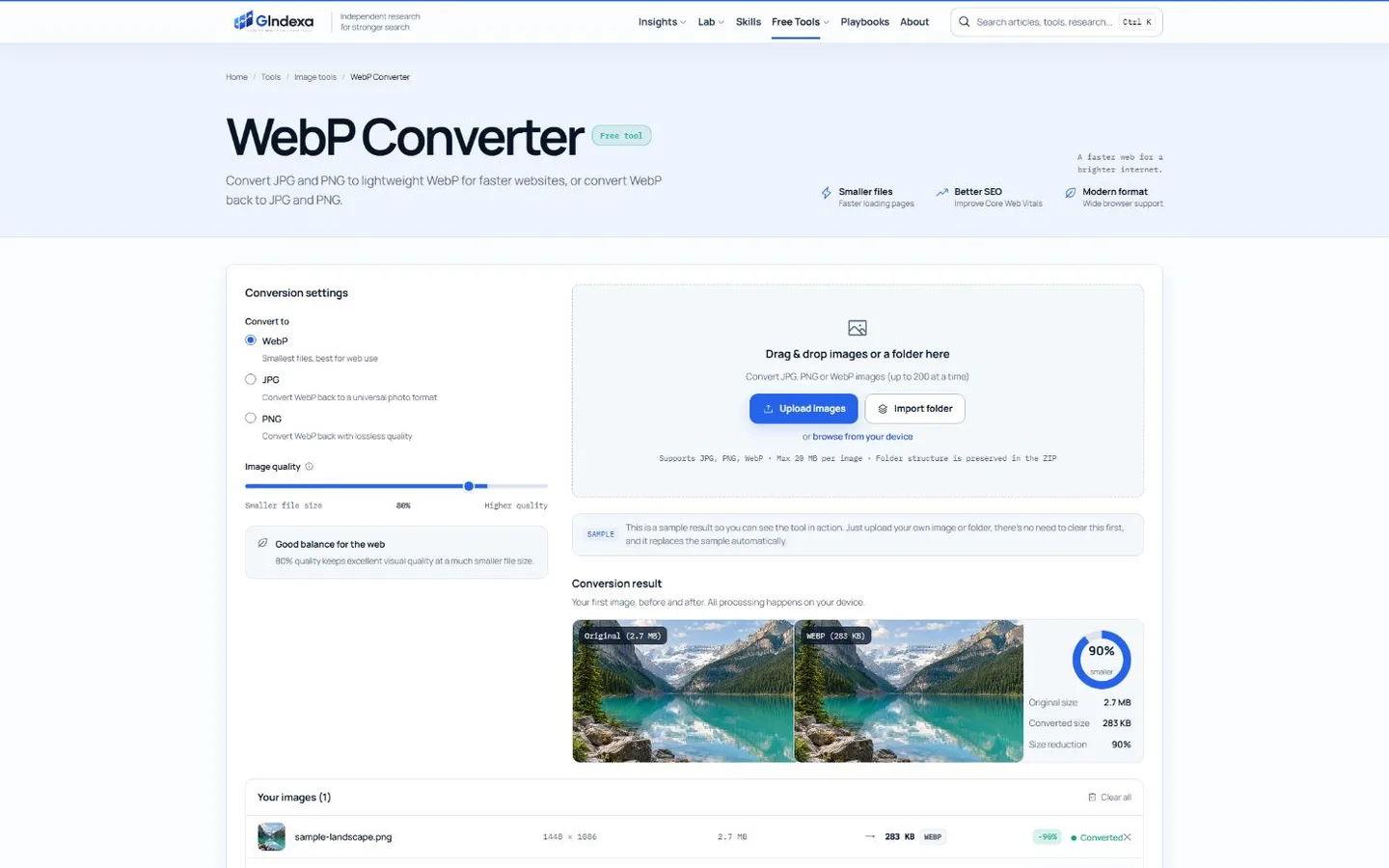
GIndexa covers the most common browser conversion job: it converts in both directions, handles up to 200 files or a folder, and keeps every image on the device. Squoosh gives one image more careful quality tuning. CloudConvert handles unusual source and destination formats, while Convertio can import files from cloud storage.
No converter is best for every file. The important distinctions are conversion direction, transparency, animation, batch size, processing location and output controls. This comparison uses those practical criteria instead of assuming every successful conversion produces an equally useful image.
Best WebP Converters at a Glance
| Tool | Best for | Converts to WebP | Converts from WebP | Batch support | Processing |
|---|---|---|---|---|---|
| GIndexa WebP Converter | Private folders and two-way conversion | Yes | JPG and PNG | Up to 200 files | Local browser |
| Squoosh | Visual quality tuning | Yes | Yes, format options vary | One-at-a-time workflow | Local browser |
| CloudConvert | Broad format compatibility | Yes | Many image and document formats | Yes | Cloud |
| Convertio | Cloud-drive imports and simple batches | Yes | Many formats | Yes | Cloud |
| Adobe Express | Conversion followed by design edits | Yes | JPG, PNG and other quick actions | Limited by workflow | Cloud |
| Canva | Editing and WebP export in one workspace | Yes | Import and edit support varies | Design-based | Cloud |
1. GIndexa WebP Converter: Best Overall for Private Batches
The GIndexa WebP Converter converts JPG and PNG to WebP, then handles the reverse job from WebP to JPG or PNG. Everything runs in the browser, so unpublished product images, client assets and personal photos are not uploaded. You can drop up to 200 files or import a folder, then download a ZIP that preserves filenames and folder structure.
The output control is deliberately small: choose WebP, JPG or PNG, then adjust quality for lossy WebP or JPG output. This covers the common web workflow without exposing codec settings most users do not need. It is a strong WebP to JPG converter free of account requirements, and it also works as a WebP to JPG batch converter when an older application rejects the format.
Best for: private bulk conversion, website image folders and quick two-way format changes.
Skip it when: you need RAW, HEIC, TIFF, PSD or document conversion.
2. Squoosh: Best for Comparing WebP Quality
Squoosh is an open-source browser app built around codec experimentation. It processes images locally and places the original and output in a movable comparison view, making it easier to find a quality setting that protects fine detail without carrying unnecessary bytes.
Its format and resize controls suit developers preparing a small number of important assets. The one-image interaction becomes slow when the task is bulk WebP to JPG, so use a batch-first converter for a full media directory.
Best for: hero images, detailed product photography and learning how quality settings change output.
Skip it when: hundreds of files need identical settings.
3. CloudConvert: Best for Unusual Formats
CloudConvert’s WebP converter accepts a much broader format set than a focused browser utility. Its current conversion list includes common images, camera RAW files, PSD, TIFF, PDF and several video or audio containers, with controls for resolution, quality and file size where the route supports them.
That format range helps when WebP is one step in a mixed-format workflow or the destination is neither JPG nor PNG. Files are uploaded to a cloud service, so review its privacy and retention terms before sending confidential images.
Best for: uncommon inputs, cross-media conversion and cloud-based automation.
Skip it when: files must remain local.
4. Convertio: Best for Google Drive, Dropbox, and URL Imports
Convertio can take files from a computer, Google Drive, Dropbox or a URL. It supports batch conversion and more than 200 formats across its wider service. The WebP-to-JPG page also states the important transparency limitation: JPG has no alpha channel, so transparent areas become a solid background.
Use Convertio when the source already lives in cloud storage and convenience matters more than local processing. Check the current free size and usage limits before planning a large migration, since larger or frequent jobs move into a paid plan.
Best for: cloud-drive assets and mixed office workflows.
Skip it when: transparency must survive and PNG is an acceptable destination.
5. Adobe Express: Best for Converting and Continuing to Edit
Adobe Express converts WebP to JPG or PNG and converts other images to WebP. The result can then move into the Express editor for cropping, filters, text or a social layout.
The conversion pages support files up to 40 MB for several common routes. Adobe’s tools are less efficient than a folder converter when the task is purely mechanical, but they remove an export-and-reimport step when design edits follow immediately.
Best for: marketers and creators who need an editable design after conversion.
Skip it when: you only need a ZIP of converted originals.
6. Canva: Best for Design-Led WebP Export
Canva’s photo editor combines cropping, adjustments, design elements and export formats that include JPG, PNG, WebP, HEIC and SVG. Choose it when conversion is part of preparing a finished post, thumbnail or campaign asset rather than an isolated file operation.
Canva’s workspace and templates add value for layout work, but they also add steps to a simple format change. For a directory of existing site images, a dedicated converter is faster and easier to verify.
Best for: social designs and edited marketing graphics exported as WebP.
Skip it when: you need faithful, unattended batch conversion.
Which Output Format Should You Choose?
WebP supports lossy and lossless compression, transparency and animation. Google’s WebP documentation reports that its reference encoders can produce smaller files than comparable PNG or JPEG images, but the right output still depends on the destination.
| Conversion | Use it when | Main risk |
|---|---|---|
| JPG or PNG to WebP | The image will be served on a modern website | A higher output quality can create a larger file |
| WebP to JPG | A platform or editor rejects WebP and transparency is unnecessary | Transparent pixels must be flattened |
| WebP to PNG | Transparency or lossless pixels must survive | Output may be much larger |
| Animated WebP to GIF | The destination requires GIF | File size and color quality can worsen |
| WebP to WebP | You need a lower quality or smaller dimensions | Repeated lossy encoding can add artifacts |
A WebP picture is not automatically smaller than its source. Google’s WebP FAQ notes that a lossy source converted to lossless WebP, or an already-compressed JPEG converted at a higher quality, can grow. Always compare the final byte size and visual result.
How to Convert WebP Files in Bulk
For bulk convert WebP to JPG work, make a copy of the originals first, then use one consistent output setting across the folder. A reliable sequence is:
- Inspect the folder for transparent WebP files; route those to PNG instead of JPG.
- Choose JPG for photos and PNG for graphics that require transparent or lossless pixels.
- Run a five-file sample before processing the full folder.
- Check dimensions, transparency, filenames and color on the sample.
- Convert the remaining batch and keep the originals until the destination accepts every output.
The same checks apply to WebP to PNG bulk conversion. Expect PNG files to be larger, especially for photographs. A batch tool saves time, but it cannot decide whether each image needs transparency; sample and sort first when the folder mixes logos, screenshots and photos.
WebP SEO: What Conversion Changes and What It Does Not
WebP SEO is mainly an image-performance question. Smaller appropriate files can reduce page weight, while Google recommends balancing image speed with sharp, clear output in its image SEO guidance. Conversion does not replace responsive srcset, explicit dimensions, useful alt text, descriptive filenames or lazy loading below the fold.
Use WebP for delivery when it reduces bytes without visible damage. Keep a fallback only when your actual audience or software stack needs one. Modern Chrome, Safari, Firefox, Edge and Opera support WebP according to Google’s format page, so most current web projects can serve it directly.
The localized query PNG转WebP means “PNG to WebP.” For transparent logos and UI graphics, choose lossless WebP first and compare it with an optimized PNG. For screenshot-like images with many colors, a carefully tuned lossy WebP may be much smaller, but zoom in on text and thin lines before publishing.
Frequently Asked Questions
Is a Free WebP Converter Safe for Private Images?
It depends on processing location. A local browser converter keeps file bytes on the device; an upload-based converter sends them to a server. Read the service’s retention policy and avoid cloud tools for sensitive files unless the policy and account controls meet your requirements.
Does WebP to JPG Reduce Quality?
It can. Both formats may use lossy compression, so another encode can remove more detail. JPG also discards transparency. Choose one final quality setting and avoid repeated conversion cycles.
Should I Use JPG or PNG After WebP?
Use JPG for photographs without transparency. Use PNG for logos, screenshots, line art or any image that must keep transparent pixels. If the destination accepts WebP, leaving the file in WebP is usually the more efficient choice.
The Best WebP Converter for Most People
For browser-based batches, GIndexa converts JPG and PNG in both directions, keeps files local and handles full folders. Use Squoosh for one-image tuning, CloudConvert for unusual formats, and Adobe Express or Canva when editing follows conversion. Check that the result preserves the required pixels, transparency and filenames, then confirm that the destination accepts it.