
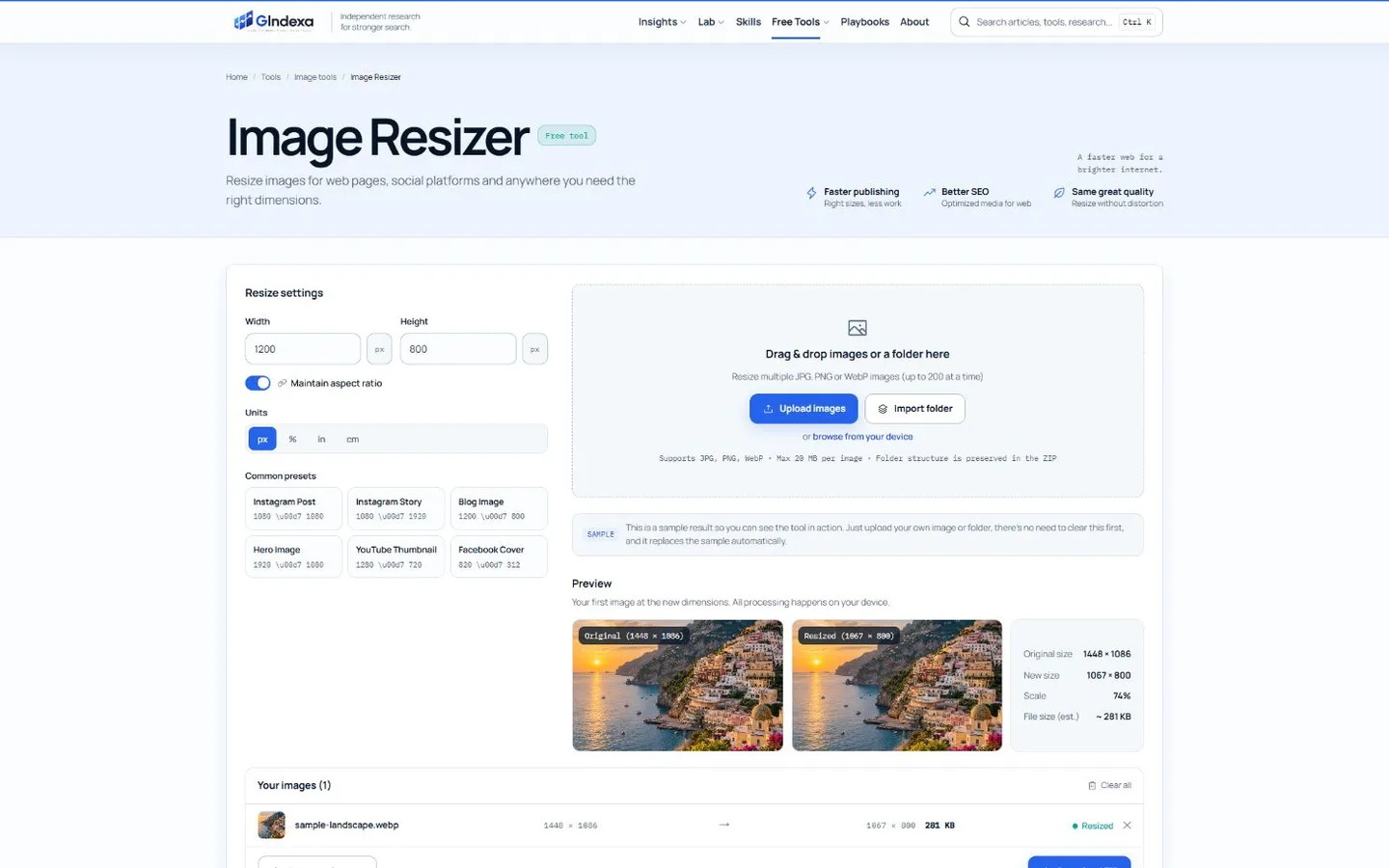
The best image resizer for most web batches is GIndexa: it processes files locally, accepts folders, preserves aspect ratio and includes common social and web presets. Adobe Express is the easiest choice for a single social image. iLoveIMG is strong for cloud-based bulk resizing, while Photopea offers the most editing control inside a browser.
Resizing changes pixel dimensions; compression changes how those pixels are encoded. Some tools do both, but the controls are not interchangeable. This guide compares seven resizers by exact-dimension support, aspect-ratio behavior, batch handling, file-size controls, privacy and the work required after resizing.
Best Image Resizers at a Glance
| Tool | Best for | Batch | Exact pixels | Target KB/MB | Processing |
|---|---|---|---|---|---|
| GIndexa Image Resizer | Private folders and web presets | Up to 200 | Yes | No, compress afterward | Local browser |
| Adobe Express | Fast social resizing | No focused batch | Yes | Limited | Cloud |
| iLoveIMG | Simple bulk resizing | Yes | Yes | No dedicated target in resizer | Cloud |
| Canva | Resizing inside a design workflow | Yes, design-based | Yes | Export-dependent | Cloud |
| ImageResizer.com | Print units and target file size | Yes | Yes | Yes for supported output | Cloud |
| Squoosh | Resize plus codec tuning | One-image workflow | Yes | Codec-dependent | Local browser |
| Photopea | Precise editing, DPI and canvas work | Manual | Yes | Export-dependent | Local browser |
1. GIndexa Image Resizer: Best Overall for Private Batches
The GIndexa Image Resizer changes JPG, PNG and WebP dimensions by exact pixels or percentage. It can process up to 200 files or an imported folder, then return a ZIP with the original folder structure. Each source file can be up to 20 MB, and all decoding and export work stays in the browser.
Keep aspect ratio on when images must fit inside a width-and-height box without distortion. Turn it off only when an exact width and height matter more than natural proportions. Presets cover 1080 × 1080, 1080 × 1920, 1280 × 720, 1920 × 1080 and 1200 × 800, which removes repeated typing from common production work.
Use it as a resizer JPEG utility or when you need to know how do you resize a JPEG file without installing software. Set one dimension, keep the ratio locked and verify the calculated output before downloading the batch.
Best for: website media libraries, local-only jobs and consistent folder exports.
Skip it when: you need inches, centimeters, DPI or a direct target file size.
2. Adobe Express: Best for One Social Image
Adobe Express accepts JPEG, JPG, PNG and WebP files up to 40 MB in its current quick action. It offers standard aspect ratios, social platform presets and custom width and height, then lets the user download immediately or continue in the editor.
This is the easiest option when one image needs a platform-ready crop and a few design changes. Adobe also warns when enlargement may harm quality, which is useful because a resizer cannot restore detail that the source never contained.
Best for: a single Instagram, Facebook, YouTube or presentation asset.
Skip it when: you need to run the same settings across a large local folder.
3. iLoveIMG: Best Simple Bulk Resizer
iLoveIMG resizes JPG, PNG, SVG and GIF files by pixels or percentage. Its batch interface can maintain aspect ratio, avoid enlarging smaller images and treat entered width and height as maximum dimensions. Files can come from the device, Google Drive or Dropbox.
The maximum-dimension behavior is useful for mixed landscape and portrait batches: every image fits inside the same box without being stretched. It is less suitable when every output must be an identical canvas size, because proportional fitting naturally produces different final widths or heights.
Best for: straightforward cloud-based batches with mixed source dimensions.
Skip it when: confidential files should not be uploaded.
4. Canva: Best for Repurposing a Finished Design
Canva’s image resizer accepts custom dimensions and platform presets, then keeps the result inside Canva’s editor for text, templates and layout changes. Its design-resize features can produce several destination sizes from the same creative, although some Magic Resize capabilities require a paid plan.
Choose Canva when the image is one layer in a larger post or presentation. A plain resizer is faster when the only requirement is changing pixels without touching composition or adding design elements.
Best for: creators adapting one campaign into multiple designed formats.
Skip it when: you want untouched images returned with their original names.
5. ImageResizer.com: Best for Print Units and File-Size Targets
ImageResizer.com’s bulk tool supports dimensions in pixels, inches, centimeters and millimeters. It can also set a target file size for JPG output, which bridges the gap between an image resizer MB task and a normal pixel resize. Its published free plan currently allows up to five images per batch, 10 MB per image and 10 premium-tool images per day.
Use it when a brief mixes print dimensions with a web upload ceiling. Check resolution and physical-size assumptions carefully; inches without the intended pixels-per-inch value do not define a unique pixel output.
Best for: print-oriented units and small jobs with a JPG size target.
Skip it when: free batch volume is the priority.
6. Squoosh: Best for Resizing and Compression Together
Squoosh processes images locally and combines resize controls with detailed codec settings. That lets a developer reduce width, change format and tune quality while watching the output size and visual difference in one screen.
The workflow is excellent for a key hero or product image but inefficient for hundreds of files. Use it when careful output inspection matters more than batch speed.
Best for: one-off web assets that need both dimension and encoding decisions.
Skip it when: the job is repetitive and folder-based.
7. Photopea: Best Advanced Browser Editor
Photopea changes image width, height and DPI, and it also separates image size from canvas size and cropping. The editor runs on the device and does not upload files, according to its documentation. Layers, masks, color spaces and export settings make it much more capable than a quick-action resizer.
That power adds interface weight. Use Photopea when resizing is one step in a real edit, such as adjusting a layered PSD or preparing a print crop. Use a focused resizer when the task is purely mechanical.
Best for: layered files, DPI work and precise manual edits.
Skip it when: a two-field width-and-height tool is enough.
Pixels and File Size Are Different Targets
A request to resize image in MB or use a resizer in KB mixes two different measurements. Width and height describe pixel dimensions. KB and MB describe encoded storage. Reducing pixels usually reduces bytes, but the final number also depends on format, quality, transparency, metadata and image complexity.
Use this decision table rather than repeatedly guessing:
| Search task | Correct workflow | Why |
|---|---|---|
| reduce image to 1mb | Resize to the required display dimensions, then compress to 1 MB | A pixel resize alone cannot promise the byte result |
| convert image under 2mb | Choose the accepted format, resize, then apply a 2 MB ceiling | “Convert” may change format without reducing dimensions |
| resize image to 100kb | Reduce dimensions first, then use a compressor with a 100 KB target | 100 KB is not a width or height |
| resize picture to 100kb | Follow the same resize-then-compress sequence | The noun “picture” does not change the method |
| resize image to 20kb | Use small dimensions and aggressive JPG/WebP compression | 20 KB is usually suitable only for simple thumbnails or avatars |
For exact byte ceilings, resize here and finish with the Image Compressor. Keep the original file because repeated lossy exports accumulate artifacts.
Exact Pixel Workflows for Social and Web Images
Resize Image for Instagram
To resize image for Instagram, start from the destination format rather than a generic square. A square post commonly uses 1080 × 1080, while a vertical story uses 1080 × 1920. Lock the ratio before resizing; otherwise faces and circular objects can stretch. If the source ratio differs, crop first with the Image Cropper and resize second.
Resize Image for Facebook
Queries such as resize image Facebook, resize photo for Facebook profile and resize a picture for Facebook refer to different placements. A profile image is square and displayed with a circular mask in many contexts, while feed and cover placements use wider ratios. Keep important faces and text away from the edges, then preview the actual destination before publishing because platform display treatments can change.
Resize Image to 1920x1080
To resize image to 1920x1080, use a 16:9 crop when the source ratio differs. Forcing an unrelated ratio will stretch the scene. A 1920 × 1080 output is useful for full-HD presentations, video thumbnails and some hero slots, but a responsive website should also create smaller candidates and serve them with srcset.
Use a 500x500 Image Resizer
A 500x500 image resizer should create a square composition before scaling. If the source is rectangular, center or manually position a 1:1 crop, then export at 500 × 500. Resizing directly to those dimensions with the ratio unlocked distorts the subject.
Resize Image to 240x240
To resize image to 240x240, crop to 1:1 first and keep the subject large enough to read at thumbnail size. Fine text and thin lines often disappear at 240 pixels, so simplify the composition rather than sharpening aggressively.
How to Adjust a JPEG Size Without Distortion
If you are asking how to adjust a JPEG size, decide whether “size” means pixels or bytes. For pixels, lock aspect ratio and change one dimension. For bytes, resize to the required display dimensions, export once at a sensible quality, then compress toward the file limit. Do not stretch picture online unless distortion is intentional; cropping or adding canvas space preserves natural proportions.
Upscaling deserves extra caution. Standard resizing interpolates new pixels but cannot recover missing texture. Start with the largest clean source, avoid repeated enlargement and inspect edges at 100% zoom. For public web images, Google’s image SEO guidance recommends responsive images, sharp output and efficient delivery rather than one oversized file for every screen.
Frequently Asked Questions
Should I Crop or Resize First?
Crop first when the destination ratio differs from the source, then resize to the final pixels. Resize first only when you need to reduce an extremely large working file before a loose manual crop.
Does Resizing Down Reduce Quality?
It removes pixels, but a well-resampled smaller image can look sharper at its intended display size. Quality problems usually appear when an image is enlarged, stretched, repeatedly exported or compressed too aggressively afterward.
Can One Image Size Work for Every Device?
One large source can display everywhere, but it wastes bandwidth on small screens. Generate several widths and use HTML srcset and sizes so the browser selects an appropriate file.
The Best Image Resizer for Most Tasks
For private web batches, GIndexa combines local processing, folder handling, exact pixels, percentage scaling and useful presets. Adobe Express suits one social image, iLoveIMG handles cloud batches, ImageResizer.com adds KB or MB targets, and Photopea supports complex edits. Start with the required measurement: resize for pixels, crop for a new aspect ratio, and compress for a KB or MB limit after the dimensions are correct.