
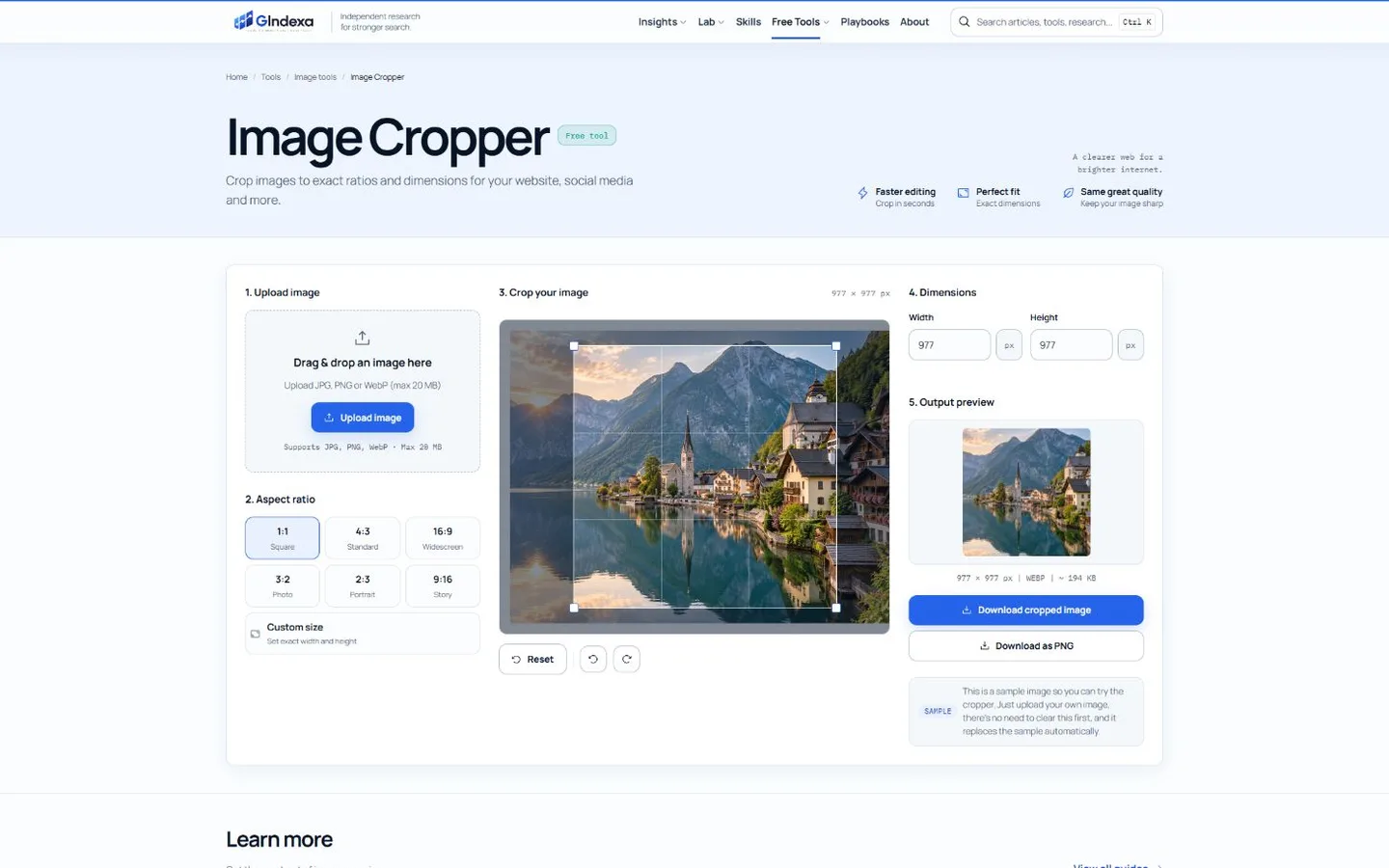
For a precise, private one-file edit, GIndexa keeps the image on the device, supports fixed ratios and exact pixel dimensions, and can rotate before export. iLoveIMG applies one ratio to several files, while Photopea handles layers, angled crops and detailed editing.
Cropping removes pixels outside a selected frame. It does not merely shrink an image, and it cannot recover detail after the crop. This guide compares six tools by ratio controls, exact dimensions, batch support, transparency, processing location and the editing work available after the frame is set.
Best Image Croppers at a Glance
| Tool | Best for | Ratios and pixels | Batch | Transparency | Processing |
|---|---|---|---|---|---|
| GIndexa Image Cropper | Private exact crops | Presets and custom dimensions | No | PNG output available | Local browser |
| Adobe Express | Fast social crops | Presets and freeform | No focused batch | PNG output | Cloud |
| Canva | Smart and shape-based crops | Presets, freeform and frames | Design-based | PNG output | Cloud |
| Pixlr | Batch presets plus photo editing | Freeform and presets | Yes | PNG/WebP output | Cloud/app workflow |
| iLoveIMG | Repeating one ratio across a batch | Pixel rectangle and common ratios | Yes | PNG supported | Cloud |
| Photopea | Angled crops and layered files | Manual, canvas and perspective tools | Manual | Yes | Local browser |
1. GIndexa Image Cropper: Best Overall for Private Precision
The GIndexa Image Cropper loads JPG, PNG or WebP files up to 20 MB and processes them locally. Choose freeform, 1:1, 4:3, 3:2, 16:9, 9:16 or a custom width and height. The crop box shows live pixel dimensions, and rotation controls help correct orientation before the final selection.
This focused workflow is useful when one composition deserves manual attention. It works well as a profile picture cropper because a square lock keeps the face centered while the crop moves. It is also a practical way to crop image 500x500: choose custom size, enter 500 for both dimensions, position the box, preview and export.
Best for: private photos, exact deliverables and deliberate one-image framing.
Skip it when: the same automatic crop must be applied to dozens of files.
2. Adobe Express: Best Quick Crop for Social Posts
Adobe Express supports JPEG, JPG, PNG, WebP and HEIC files up to 40 MB in its current quick action. The tool offers preset aspect ratios or draggable handles, then downloads the result or opens it in the wider editor. The editor also provides shape crops and platform-oriented layouts.
Use Adobe Express when a crop immediately becomes a social graphic with text, filters or background work. A dedicated cropper is faster when you only need a clean rectangle and the original file should remain local.
Best for: one social image followed by light design work.
Skip it when: upload privacy or batch consistency is the main concern.
3. Canva: Best for Smart Crop and Shapes
Canva supports freeform and preset ratios, plus Smart Crop and frames for circles, hearts and other shapes. It also allows rotation and further photo adjustments inside a design. Those features help when the final image is part of a card, post or collage rather than a standalone rectangular asset.
Shape frames are masks inside a design; they are not always the same as exporting a file with a physically cropped transparent canvas. Verify the downloaded format and transparent-background requirements before using a frame for production assets.
Best for: designed layouts, shape masks and automatic composition suggestions.
Skip it when: exact output coordinates or local-only processing matter.
4. Pixlr: Best for Batch Cropping With Editing Tools
Pixlr’s crop tool offers freeform framing, preset ratios such as 1:1, 4:3 and 16:9, rotation and flipping. Its official page also documents batch cropping through the Batch Editor, with output choices including JPG, PNG, WebP and PDF.
Pixlr can crop multiple images at once and apply additional photo edits. A batch preset saves time, but it cannot identify the right subject position in every frame. Review portraits and product photos individually when heads, labels or edges sit near the crop boundary.
Best for: repeated aspect ratios with optional effects and corrections.
Skip it when: every image needs a unique hand-framed crop and nothing else.
5. iLoveIMG: Best Simple Batch Cropper
iLoveIMG can crop one image manually or apply common ratios to a batch. Its documented batch ratios include 3:2, 4:3, 5:4, 1:1, 4:5, 3:4 and 2:3. A pixel-based crop can also use width, height and X/Y position.
This is useful for catalog assets photographed against a consistent background. If subjects move around between source files, one fixed crop can cut off important content. Run a small sample and inspect every thumbnail before downloading the full set.
Best for: consistent studio images and simple ratio-based batches.
Skip it when: source composition varies widely or files must remain on-device.
6. Photopea: Best Advanced Browser Cropper
Photopea runs locally in the browser and provides crop, canvas-size, rotate and perspective-crop workflows inside a full image editor. A crop rectangle can be moved, resized or rotated, while layered documents remain editable. This separates composition changes from destructive flattening until export.
Use Photopea for a horizon that needs straightening, a layered PSD or a perspective correction. Its full editor adds unnecessary steps for a basic square avatar.
Best for: layers, rotated frames, perspective work and offline-style privacy.
Skip it when: you want a short upload-drag-download flow.
How to Crop Without Losing Quality
To crop picture without losing quality, keep the crop at native pixels and avoid enlarging the result after pixels have been removed. Cropping itself does not blur the retained pixels; quality loss usually comes from scaling the smaller crop back up, using a lossy export, or repeatedly saving the same JPEG.
Use this sequence:
- Start with the highest-resolution original, not a social-media download.
- Lock the destination ratio before positioning the frame.
- Keep enough source pixels for the final display dimensions.
- Export once in PNG for lossless graphics or high-quality JPG/WebP for photos.
- Inspect the final file at 100% zoom and at its actual display size.
If the crop must become smaller, use the Image Resizer after framing. Do not stretch the crop to a different ratio.
PNG Crop: Preserve Transparency and Sharp Edges
A PNG crop often involves a logo, screenshot or transparent cutout. To crop PNG online safely, use a tool that accepts PNG and can export PNG again. JPG output removes transparency and fills transparent pixels with a background color, so it is the wrong destination for a cutout.
When you crop transparent image files, inspect three details:
- Transparent padding: remove unused empty pixels without clipping shadows or soft edges.
- Canvas edge: leave enough breathing room if the asset will receive focus rings, filters or motion.
- Export format: use PNG or WebP with alpha, not JPG.
For a web asset, compare the cropped PNG with a WebP version using the WebP Converter. Keep whichever file is smaller without changing required transparency or edge quality.
Crop, Resize, or Compress?
These operations solve different problems and should happen in a deliberate order.
| Goal | Operation | Example |
|---|---|---|
| Remove unwanted background or change composition | Crop | Turn a landscape portrait into a centered square |
| Change pixel dimensions | Resize | Scale the square from 2,000 × 2,000 to 500 × 500 |
| Reduce encoded bytes | Compress | Bring the 500 × 500 output below 100 KB |
For a profile photo, crop to 1:1, resize to the platform’s required pixels, then compress only if an upload ceiling remains. That order avoids distortion and prevents the compressor from spending bytes on pixels you will later discard.
How to Evaluate a Crop Before Exporting
Check the frame at thumbnail size, because a crop that looks balanced at full screen can become unreadable when small. Keep eyes near the upper third in a head-and-shoulders portrait, preserve a product’s complete silhouette, and avoid placing meaningful text against a trim edge. For responsive website crops, confirm that the subject survives both wide and narrow containers rather than assuming one composition fits every breakpoint.
The rule of thirds is a useful starting grid, not a mandatory formula. Centered crops work better for avatars, symmetrical products and icons. Off-center crops can leave deliberate text space in a hero image. The correct frame is the one that preserves the subject’s purpose at the destination size.
Frequently Asked Questions
Does Cropping Reduce Resolution?
It reduces total pixel dimensions because pixels outside the selected area are removed. The pixels inside the crop do not become softer unless the result is resized or re-encoded with lossy compression.
Can I Undo a Crop After Download?
Not from the exported file. Keep the original or use a layered, non-destructive editor before export. Browser back buttons and editor undo history are not substitutes for preserving the source.
Can Every Tool Crop a Transparent PNG?
Many tools can open PNG, but the export must also support alpha transparency. Choose PNG or transparent WebP output and inspect the result over both light and dark backgrounds.
The Best Image Cropper for Most Tasks
For private, exact one-image work, GIndexa combines local processing, preset ratios, custom pixels and rotation. Choose Pixlr or iLoveIMG for batches, Canva for shape-based designs, and Photopea for layered or angled edits. Preserve the original, crop for composition first, resize second and compress last.