
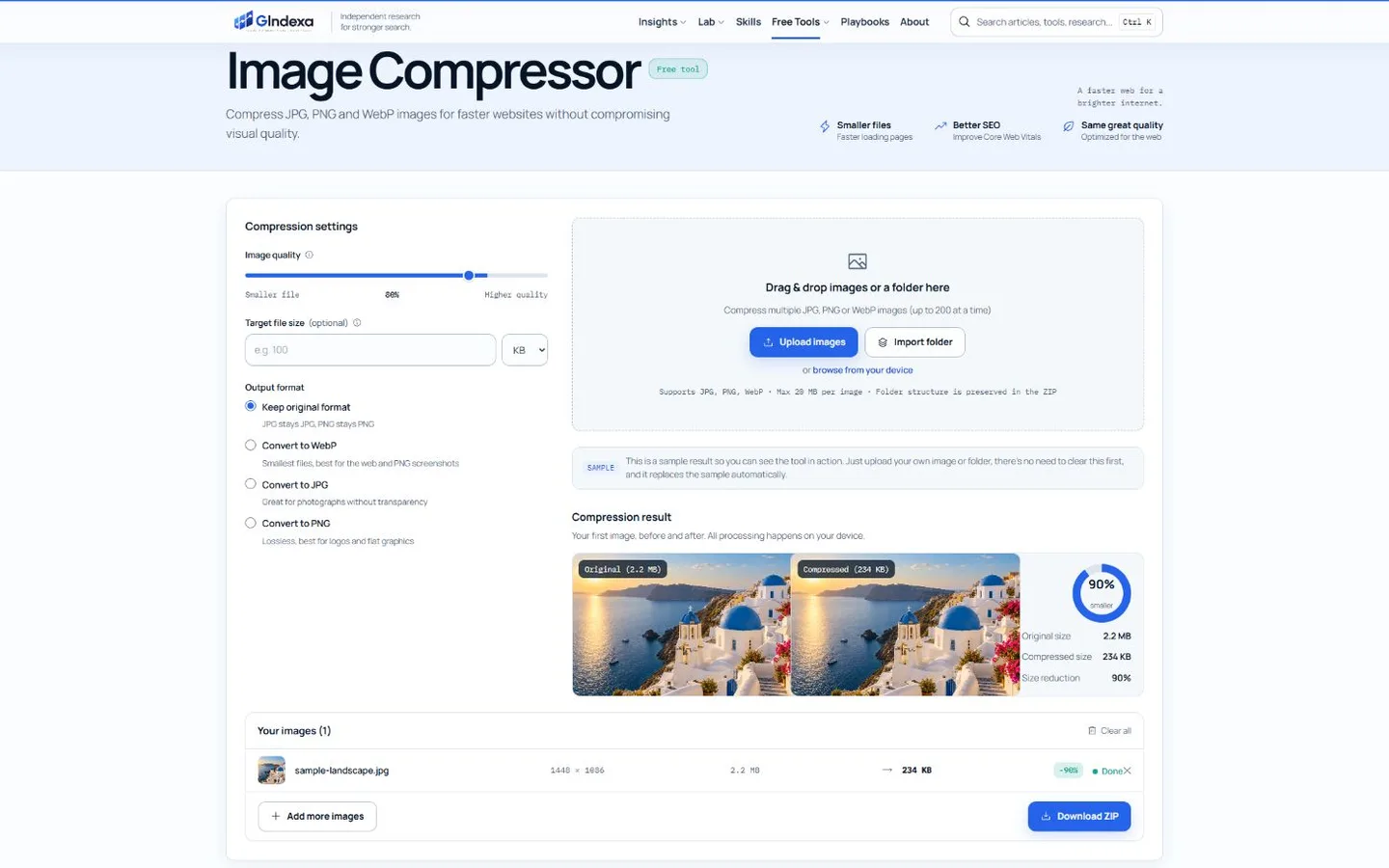
The best image compression tool depends on the job. GIndexa handles private browser batches and exact size targets. Squoosh offers detailed codec controls. TinyPNG keeps upload-and-compress work simple, while ShortPixel connects one-off compression with WordPress and API workflows.
This guide compares seven tools by processing location, supported formats, batch handling, controls and practical limits. We did not rank them by a single compression percentage because results change with image content, dimensions, source encoding and quality settings. A fair choice starts with the workflow, not an unverifiable universal score.
Best Image Compressors at a Glance
| Tool | Best for | Processing | Useful controls | Main limitation |
|---|---|---|---|---|
| GIndexa Image Compressor | Private batches and exact KB or MB targets | Local browser | Quality, target size, output format, folders | Browser memory sets the practical ceiling |
| Squoosh | Codec experiments and visual comparison | Local browser | Codec, quality, resize and advanced options | Primarily a one-image workflow |
| TinyPNG | Fast, low-decision compression | Cloud upload | Automatic optimization | Free web limits apply |
| ShortPixel | WordPress and multi-mode optimization | Cloud upload | Lossy, glossy, lossless, resize, WebP/AVIF | Best automation features sit in its wider product |
| Compressor.io | Straightforward lossy or lossless jobs | Cloud upload | Compression mode, format support | Advanced controls are limited or paid |
| Kraken.io | Teams needing an API and expert settings | Cloud upload | Lossy, lossless, expert mode, metadata | Free interface has tight file-size limits |
| ImageOptim | Repeat desktop work on macOS | Local desktop app | Lossless defaults, metadata removal, lossy option | macOS application, not a browser tool |
1. GIndexa Image Compressor: Best for Private Batch Compression
The GIndexa Image Compressor processes JPG, PNG and WebP files inside the browser. Images do not need to be sent to a server, which makes it a practical choice for unpublished product shots, client assets or personal photos. It accepts up to 200 files, can import a folder, preserves the folder structure in the downloaded ZIP and caps each source file at 20 MB.
It is also the most direct option here when the requirement is a number rather than a quality setting. Enter 100 KB, 200 KB, 500 KB, 1 MB, 2 MB, 5 MB or 10 MB, then let the encoder search for the highest JPG or WebP quality that fits. The before-and-after panel shows the actual output size and reduction before download.
Choose it when you need a WebP image compressor with batch handling, a general WebP compressor, or a quick way to compress WebP without uploading the file. The same output selector can keep the original format or convert the result to JPG, PNG or WebP.
Best for: private batches, folder-based website assets and fixed upload limits.
Skip it when: you need a WordPress plugin, API or specialist codec parameters.
2. Squoosh: Best for Codec Control
Squoosh runs compression locally and exposes detailed encoding controls. Its side-by-side preview shows when text edges, skin texture or gradients begin to degrade. The open-source project processes images on the device rather than sending them to a server.
Squoosh suits developers who want to test several output formats, resize during export and inspect the trade-off between bytes and visible artifacts. It is less convenient for a folder containing dozens of images because its core interaction focuses on one image at a time.
Best for: deliberate one-off optimization, codec comparison and difficult images.
Skip it when: the main requirement is bulk throughput.
3. TinyPNG: Best for Automatic Compression
TinyPNG uses automatic lossy optimization for WebP, AVIF, JPEG and PNG, so the user does not need to choose a codec mode or tune a quality slider. Its web interface accepts up to 20 images at once on the free tier, with a 5 MB limit per image. The service also supports JXL and APNG according to its current format list.
The low-decision workflow is the advantage: upload, wait and download. The trade-off is control and privacy. Files are processed by the service, and the automatic result may not match a strict target such as 200 KB without another pass.
Best for: small batches when speed matters more than manual control.
Skip it when: files cannot leave the device or must land below a precise ceiling.
4. ShortPixel: Best for WordPress Workflows
ShortPixel offers lossy, glossy and lossless modes, along with resizing and conversion to WebP or AVIF. Its broader product includes WordPress optimization, so it fits teams that want the same vendor for one-off browser jobs and ongoing CMS automation.
The three compression modes are useful decision shortcuts. Lossy prioritizes smaller output, lossless retains pixel data, and glossy sits between them for photography where visible quality matters. ShortPixel also documents controls for maximum dimensions, EXIF retention and CMYK-to-RGB conversion.
Best for: sites that want a path from manual compression to automated publishing.
Skip it when: you only need a no-account local utility.
5. Compressor.io: Best Simple Lossy-or-Lossless Choice
Compressor.io supports JPEG, PNG, SVG, GIF and WebP. Its main decision is clear: use lossy mode for smaller website assets or lossless mode when every pixel must remain unchanged. That makes it easier to understand than a tool with many codec-specific switches.
The Pro tier adds resizing, metadata preservation and filename controls. The free experience works well for occasional files, but teams that need consistent naming, metadata handling or repeatable settings should compare the paid plan with a dedicated desktop or API workflow.
Best for: users who understand lossy versus lossless but do not want deeper encoder settings.
Skip it when: you need local-only processing or a large free batch.
6. Kraken.io: Best for Expert Settings and API Expansion
Kraken.io provides lossy, lossless and expert modes. Expert mode exposes JPEG and PNG quality, metadata preservation, automatic orientation and chroma subsampling. Paid plans add resizing, conversion, URL ingestion, ZIP uploads, plugins and API access.
The important free-tier constraint is size: the free web interface allows up to 20 files but limits each file to 1 MB. That is enough for already web-sized assets, not camera originals. Kraken makes more sense when a team expects to move beyond the free page into an automated production system.
Best for: technical teams evaluating a service before adopting its API.
Skip it when: source files regularly exceed 1 MB and you do not want a paid plan.
7. ImageOptim: Best Free Desktop Compressor for macOS
ImageOptim is a free, open-source Mac application that combines tools including MozJPEG, pngquant, Pngcrush, SVGO and Zopfli. Drag files into the app and it applies suitable optimizers automatically. Its default behavior removes metadata such as EXIF and GPS, although preferences can preserve metadata when required.
Because it runs on the computer, ImageOptim fits repeat work where files should remain local. It can also be launched from the command line. The limitation is platform reach: Windows, ChromeOS and mobile users need another option.
Best for: Mac users optimizing the same asset folders repeatedly.
Skip it when: collaborators need a shared browser workflow across operating systems.
Which Compressor Fits Each File-Size Target?
File-size keywords often describe upload limits, not different compression technologies. Use one tool with a target-size field, then choose settings based on the source and destination.
| Common task | Recommended action | Quality check |
|---|---|---|
| compress image to 100kb | Resize first, then export as WebP or JPG to a 100 KB target | Inspect faces, small text and gradients at 100% zoom |
| image compressor to 200kb | Use 200 KB for normal article images and medium product shots | Compare the main subject against the original |
| image compressor to 500kb | Keep more detail for wide editorial or portfolio images | Check fine texture and edge halos |
| compress photo to 1mb or compress image to 1 mb | Retain high dimensions only when the destination needs them | Confirm the output dimensions match the display slot |
| 2mb image compressor or image compressor to 2mb | Use for high-resolution sharing or generous upload portals | Avoid re-encoding if the source is already below 2 MB |
| image compressor to 5mb | Set 5 MB only for detailed originals or print handoffs | Keep an untouched master separately |
| 10mb image compressor or compress image to 10mb | Treat 10 MB as a ceiling, not a target to fill | If the source is smaller, keep it unchanged |
| compress png to 200kb | Convert photographic PNG to WebP; keep PNG for crisp flat art or required transparency | Check transparent edges on the destination background |
If you are asking, “how can I reduce picture file size,” use this order: remove unnecessary pixels with the Image Resizer, choose an efficient format, then lower quality only as far as necessary. The awkward but common query “how do I reduce a pictures file size” points to the same three-step workflow. Compression alone cannot compensate for a 6,000-pixel image displayed at 800 pixels.
For WebP-specific work, compress WebP image files at a lower quality only when the current export is too large. A WebP compress pass can produce a larger file when the new quality is higher than the source. Google’s WebP FAQ recommends lowering the target quality or using a file-size target in that situation.
How to Choose an Image Compressor
Use five checks before uploading a production asset:
- Processing location: local tools are safer for confidential files; cloud tools can offer APIs and central automation.
- Correct format: JPG suits photos without transparency, PNG suits lossless flat graphics, and WebP supports both lossy and lossless compression plus transparency.
- Dimension control: resizing a 4,000-pixel source to its actual display width often saves more than another compression pass.
- Batch behavior: confirm file count, per-file limit, folder handling and whether names survive the download.
- Visual verification: judge the output at its real display size and at 100% zoom. Watch text, hair, gradients, transparent edges and high-contrast lines.
Google’s image SEO guidance recommends balancing speed with sharp, clear images. The smallest possible file is not automatically the best result if compression damages the subject or makes a search thumbnail look poor.
Frequently Asked Questions
Can Compression Make an Image Larger?
Yes. Re-encoding at a higher quality, switching from a lossy source to a lossless output, or adding metadata can increase file size. Keep the original when the proposed output is larger and offers no visible benefit.
Is Local Compression Always Better Than Cloud Compression?
Local processing is better for privacy and quick offline-style work. Cloud services are better when you need APIs, CMS plugins, shared automation or server-side processing. The image result depends on the encoder and settings, not merely where the code runs.
Should I Remove EXIF During Compression?
Remove EXIF and GPS for public web images unless the metadata has a clear editorial, rights or photography purpose. Keep copyright or color-profile data when the publishing workflow depends on it. Check the file first with the EXIF Viewer.
The Best Image Compression Tool for Most Browser Jobs
For private batches with fixed upload limits, use GIndexa for local processing, folder import, format conversion and exact KB or MB targets. Squoosh suits codec-level inspection, TinyPNG automates the decision, and ShortPixel or Kraken can extend into CMS and API workflows. Resize first, preserve the original and inspect the final pixels instead of trusting one percentage.