
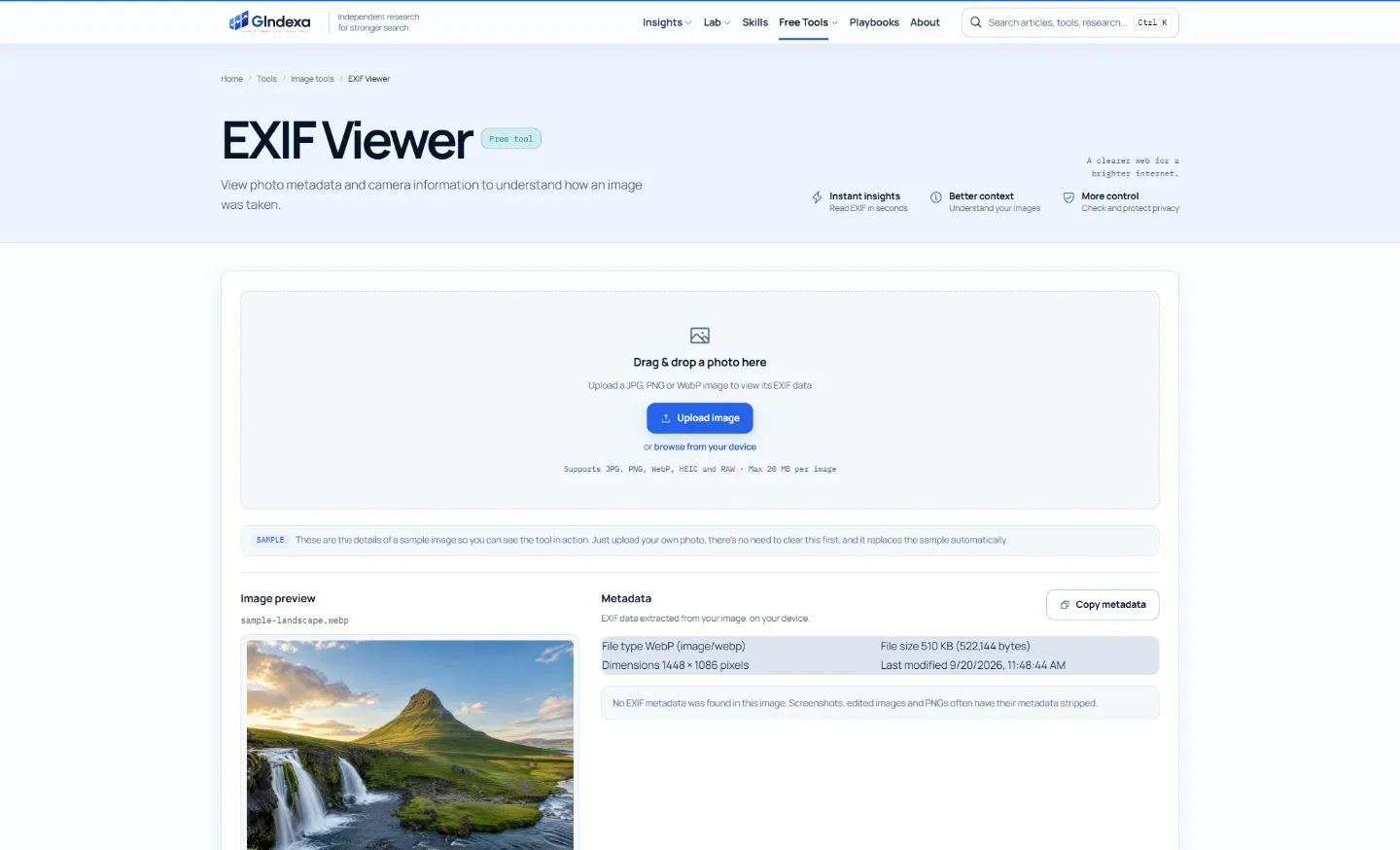
For a quick private check, GIndexa reads common photo formats in the browser without uploading the file. ExifTool covers detailed metadata, RAW formats, automation and editing. Exif.tools reads images, documents, audio and video locally, while Jimpl pairs an upload-based viewer with metadata removal.
EXIF is only one metadata family. A file may also contain GPS, IPTC, XMP, ICC, maker notes, operating-system properties or application-specific fields. This guide compares six viewers by processing location, format breadth, depth, removal capability and the level of technical knowledge required.
Best EXIF and Photo Metadata Viewers at a Glance
| Tool | Best for | Processing | File coverage | Can edit or remove? |
|---|---|---|---|---|
| GIndexa EXIF Viewer | Fast private photo checks | Local browser | JPG, PNG, WebP, HEIC and common RAW | View and copy only |
| ExifTool | Deep inspection and automation | Local command line | Extensive image, media and document support | Yes |
| exif.tools | Broad local file inspection | Local browser for chosen files | Images, PDFs, documents, audio and video | Primarily viewing |
| Jimpl | Simple EXIF view and removal | Cloud upload | Common photo formats | Removes metadata from download |
| Metadata2Go | Quick mixed-file checks | Cloud upload | Images and other media/document types | Related service tools vary |
| Apple Preview | Built-in Mac inspection | Local desktop | Formats Preview can open | Limited metadata workflow |
1. GIndexa EXIF Viewer: Best for a Fast Private Check
The GIndexa EXIF Viewer reads metadata locally from JPG, PNG, WebP, HEIC and common RAW files up to 20 MB. It groups file details, camera and lens data, exposure, aperture, ISO, focal length, capture time and GPS coordinates into a readable panel. When GPS exists, the result can open the point in OpenStreetMap, and a copy button exports the displayed fields as text.
Because bytes stay on the device, this EXIF photo viewer is suitable for client images, family photos and files whose metadata may reveal a private location. It also works as a focused picture metadata reader when you want answers without installing a command-line utility.
Best for: one-file privacy checks, photography settings and readable GPS inspection.
Skip it when: you need to edit tags, scan directories recursively or inspect obscure maker notes.
2. ExifTool: Best for Complete Metadata and Automation
ExifTool is the reference choice for technical users. It reads and writes many metadata families, including EXIF, GPS, IPTC, XMP, JFIF, GeoTIFF, ICC profiles, Photoshop resources and maker notes from many camera brands. It can process directories recursively and export structured results such as JSON, XML or CSV.
The command line makes bulk audits reproducible. For example, exiftool -json folder can produce machine-readable metadata for a directory, while tag-specific commands can copy, replace or delete fields. ExifTool preserves original files with an _original suffix by default when writing, which provides a recovery path that browser tools often lack.
Best for: photographers, archivists, forensic inspection, scripts and large collections.
Skip it when: you only need to identify the camera or check one GPS point.
3. exif.tools: Best Broad Local Metadata Viewer
exif.tools runs local analysis for files selected from the device and covers photos, PDFs, documents, audio, video and more. The interface emphasizes camera settings, location and file details while exposing deeper tag data for users who need it.
Choose it when one workflow needs an image viewer and an audio metadata viewer. Audio files do not use photo EXIF in the usual sense; they may carry ID3, XMP or container-specific tags. A broad metadata tool or ExifTool can read those fields more reliably than a photo-only interface.
Best for: privacy-conscious inspection across several file types.
Skip it when: you need a dedicated batch editor rather than a viewer.
4. Jimpl: Best Simple Viewer With Metadata Removal
Jimpl accepts photos up to 50 MB, displays camera, lens, exposure, ISO, GPS, copyright and file properties, then offers a download with EXIF removed. Its site states that uploaded photos are private and deleted after 24 hours.
The remove-and-download flow is convenient before sharing a photo, but it is still an upload workflow. For highly sensitive images, inspect and strip metadata with a local tool instead of relying only on a retention promise.
Best for: users who want to view and remove metadata in one simple page.
Skip it when: the file cannot be sent to a third-party server.
5. Metadata2Go: Best Quick Mixed-File Upload Checker
Metadata2Go reads hidden metadata from images and other file types. It can surface photo details such as shutter speed and focal length, alongside media or document properties such as codec, duration, author or software.
The broad upload interface is useful when you do not know which metadata family the file uses. It is less appropriate for private GPS-bearing photos because analysis happens on a service rather than entirely on the device.
Best for: occasional mixed-file checks where convenience outweighs local-only privacy.
Skip it when: you need comprehensive camera maker notes or automated output.
6. Apple Preview: Best Built-In Option on macOS
Apple Preview includes an Inspector that shows general information, image-format details, keywords and available location data. It is already installed on macOS and keeps the workflow on the computer, making it sufficient for a quick resolution, author or capture-location check.
Preview does not replace ExifTool when you need every tag or a batch report. Use it when no website should receive the file and the operating system already exposes the information you need.
Best for: Mac users who need basic local inspection without another tool.
Skip it when: you need RAW maker notes, bulk export or tag editing.
How to Read Photo Metadata
If your question is “how do I read metadata of the picture,” start with the original file. Copies downloaded from social platforms, screenshots and edited exports often have little or no EXIF because the publishing process strips it.
Use this five-step check:
- Open the original in a local viewer.
- Confirm filename, format, byte size and pixel dimensions.
- Read camera, lens, date, exposure, aperture, ISO and focal length.
- Check for GPS latitude, longitude, altitude and direction.
- Review creator, copyright, software and edit-history fields before sharing.
That is also how to view photo metadata without confusing file-system dates with capture dates. “Created” or “modified” may describe when a copy reached the current computer. DateTimeOriginal or an equivalent capture field is usually more relevant to when the shutter was triggered, although metadata can be edited and is not proof of authenticity by itself.
What the Main Metadata Fields Mean
| Field | What it tells you | Common caution |
|---|---|---|
| Make and model | Camera or phone that wrote the tag | Editors can preserve, change or remove it |
| Lens and focal length | Optics and field of view | Digital zoom and crop modes can complicate interpretation |
| Exposure time | How long the sensor gathered light | Longer exposures can show motion blur |
| Aperture | Lens opening used for the shot | Phone cameras may have fixed physical apertures |
| ISO | Recorded sensitivity setting | Higher ISO often correlates with more noise, not always poor quality |
| DateTimeOriginal | Claimed capture time | Camera clocks can be wrong or tags edited |
| GPS coordinates | Recorded capture location | Can expose a home, workplace or travel route |
| Software | Application that last wrote a tag | Absence does not prove the photo is unedited |
| Copyright/creator | Rights or authorship claim | Metadata can be removed and does not itself establish ownership |
To check metadata of photo files accurately, compare several fields rather than treating one tag as proof. To check metadata on image exports, expect fewer fields than the camera original because messaging apps, CMSs and editors commonly rewrite the file.
EXIF Privacy: GPS Is the First Field to Inspect
GPS coordinates can reveal a precise private location. Microsoft’s current Photos documentation confirms that latitude and longitude may be embedded in photos and used for location search. Before posting an original file publicly or sending it to an unknown recipient, check whether those fields are present and whether the location serves a real purpose.
Other sensitive values can include capture time, camera serial number, owner name, software history and embedded thumbnails. A stripped main preview does not guarantee that every metadata block or thumbnail is gone, so use a recognized removal tool and verify the cleaned output with a second read.
How to Remove EXIF Safely
To remove EXIF, work on a copy, not the only original. A safe sequence is:
- Duplicate the source and preserve the untouched master offline.
- Remove all metadata or only the sensitive tags required by the publishing policy.
- Reopen the cleaned file in a viewer and check EXIF, XMP, IPTC, GPS and embedded thumbnails.
- Confirm orientation and color still render correctly; some workflows rely on metadata for both.
- Share the verified copy, not the original.
ExifTool offers the most control for selective removal. A re-encoding tool such as the Image Compressor often drops EXIF while creating a web copy, but a dedicated metadata pass is easier to audit. Do not assume changing the filename or extension removes anything.
Frequently Asked Questions
Why Does My Photo Show No EXIF Data?
The file may be a screenshot, PNG, edited export, social-media download or deliberately cleaned copy. The camera may also have disabled location or other tags. No result does not necessarily mean the viewer failed.
Can EXIF Prove When or Where a Photo Was Taken?
No. EXIF can provide useful evidence, but tags can be wrong, edited or copied. Treat metadata as one signal and corroborate important claims with the original file, surrounding records and independent evidence.
Is Uploading a Photo to an EXIF Viewer Safe?
An upload-based viewer receives the file and possibly sensitive metadata. Use a local browser, desktop or command-line viewer for confidential photos. If an upload service is necessary, review its retention and privacy terms first.
The Best EXIF Viewer for Most Photo Checks
For quick photo checks, GIndexa keeps common images local and presents camera, exposure and GPS tags as readable fields. Use ExifTool for exhaustive metadata and automation, exif.tools for broad local file coverage, Jimpl for a remove-and-download flow, and Apple Preview for basic Mac inspection. Preserve the original and verify a cleaned copy before sharing it.